


Online appointment booking can make a dental practice easier to contact when someone is researching after hours or the front desk is busy. The workflow still needs rules: who may book, which appointment types can be offered, which calendars are connected, what information is collected, and when staff review is required.
This guide focuses on the administrative online booking workflow, not broad dental scheduling software or operatory management. For the general framework, see automated appointment scheduling. The commercial dental owner remains LEADSORBIT Dental Software.

Who This Guide Is For
- Dental practices receiving appointment inquiries outside office hours.
- Front desk teams that spend time exchanging availability messages.
- Group practices with location, provider, and appointment category choices.
- Practices that want booking requests connected with CRM conversations and tasks.
- Teams that want self service convenience without implying PMS level operatory scheduling.
Online Booking Is More Than a Calendar Link
A link does not define what happens before and after someone chooses a time. The practice needs a complete journey from entry point to confirmation and a reliable exception process.
- Which new patient and existing patient appointment categories may be offered?
- Which providers and locations may appear?
- How is calendar availability synchronized?
- What happens when the requested time is unavailable?
- Which fields are required and which should remain optional?
- When does a staff member review the request?
- How are confirmation, reminders, rescheduling, cancellation, and failed booking handled?
A Practical Online Booking Workflow for Dental Practices
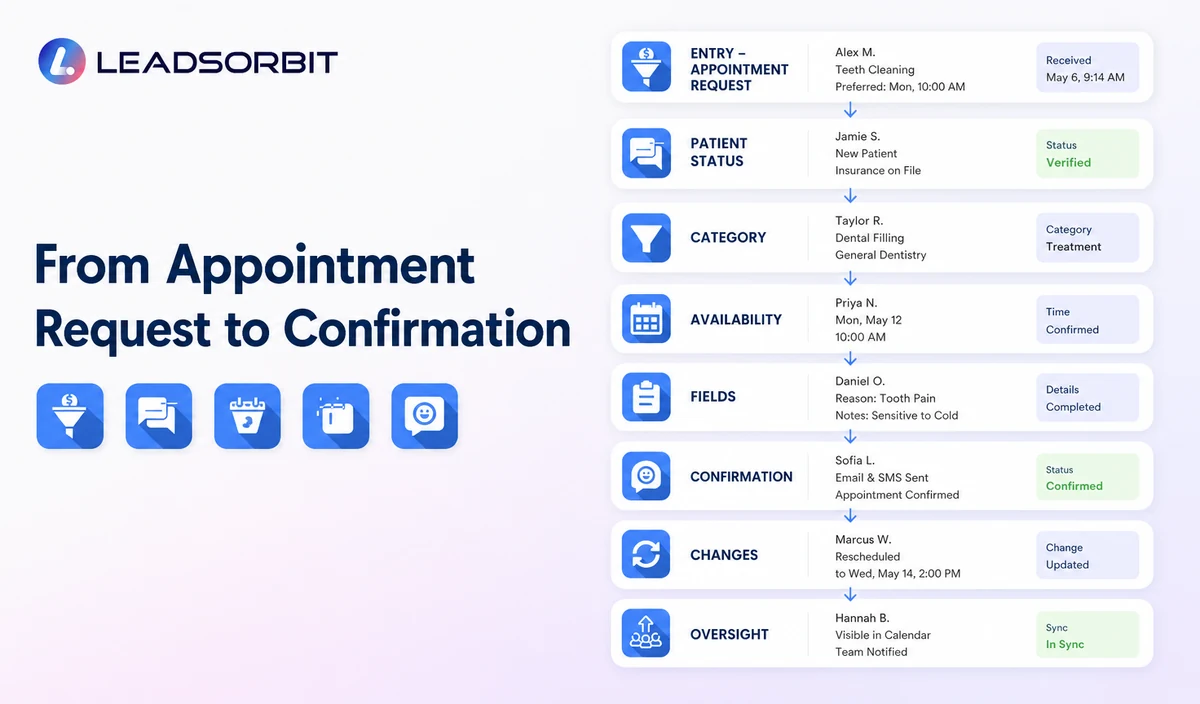
| Stage | Patient experience | System or staff action | Exception rule |
|---|---|---|---|
| 1. Entry point | The person reaches booking from the website, text, call, chat, campaign, or email. | Use the approved booking destination and preserve source where configured. | Route outdated, broken, or incorrect links for correction. |
| 2. Patient status | The person identifies as new or existing. | Select the correct appointment categories and workflow. | Move unclear or sensitive cases to staff. |
| 3. Appointment category | The person selects an approved reason or request type. | Show only permitted non clinical labels, durations, locations, and providers. | Send unsupported categories to staff review. |
| 4. Availability | The person sees approved times or submits preferences. | Use connected calendar availability or create a review task. | Do not promise a time until the booking is valid. |
| 5. Minimum information | The person enters contact and operational details. | Create or update the CRM record and avoid unnecessary clinical fields. | Move records, billing, insurance, clinical, or accessibility exceptions to staff. |
| 6. Confirmation | The person receives a clear confirmation or request received message. | Record requested, booked, confirmed, or needs review status. | Do not treat a request as a booking. |
| 7. Reminder and change path | The person can confirm, reschedule, cancel, or request staff help. | Update calendar, status, task, and conversation history. | Suppress obsolete messages after changes. |
| 8. Team oversight | Staff sees incomplete requests, exceptions, failed messages, and conflicts. | Review the work queue and resolve unowned items. | Escalate overdue or repeated failures. |
New Patient and Existing Patient Booking Paths
| Patient status | Appropriate path | Staff review needed for |
|---|---|---|
| New patient | Approved new patient appointment or request category, location/provider preference, and valid booking path. | Unsupported appointment category, unavailable time, accessibility need, policy question, or clinical request. |
| Existing patient | Approved appointment change or existing patient scheduling category. | Records, billing, insurance, treatment, clinical, or relationship specific exceptions. |
| Parent or guardian | Practice approved minor/guardian booking branch. | Authority, consent, or sensitive questions. |
| Professional office or vendor | General office contact path rather than patient booking. | Records transfer, agreements, clinical coordination, or provider communication. |
| Unknown status | One clarifying question before showing the correct options. | Duplicate or conflicting records. |
Appointment Requested, Booked, Confirmed, and Needs Review
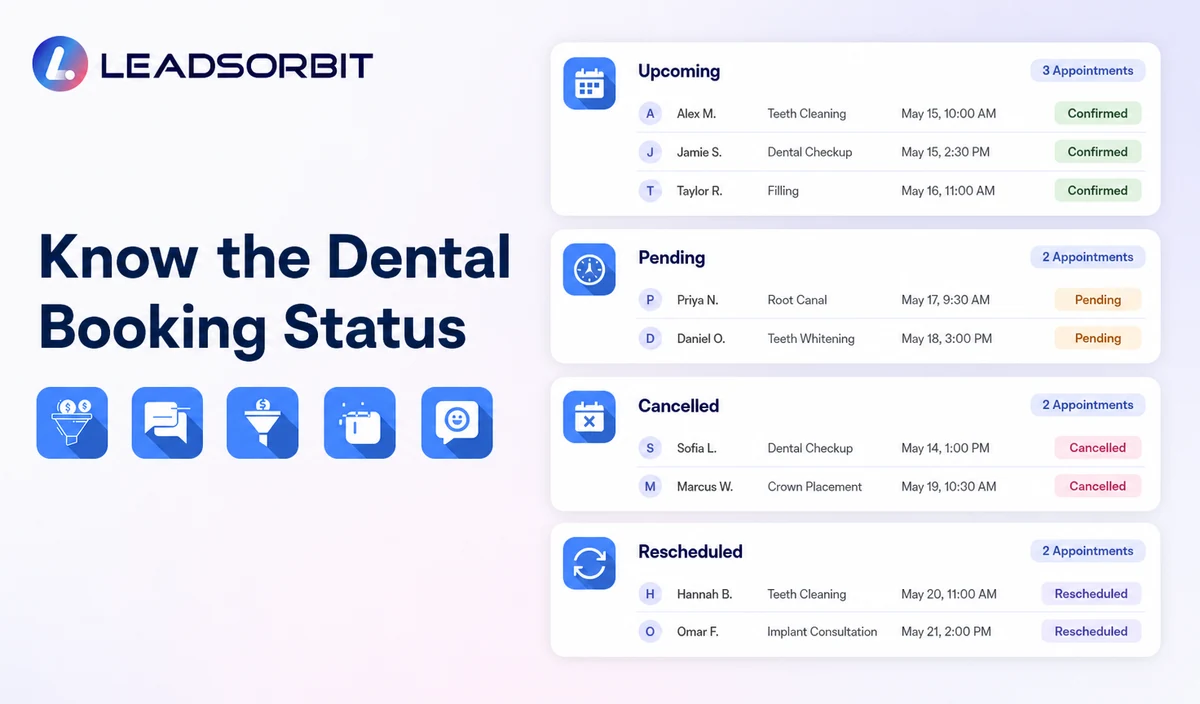
| Status | Meaning | Recommended communication |
|---|---|---|
| Appointment Requested | The person selected preferences or asked the team to schedule. | We received your request. Our team will review it during [office hours expectation]. |
| Booked | A valid appointment exists on the approved calendar. | Your appointment is booked for [date/time/location]. |
| Confirmed | The person completed the practice’s confirmation action. | Your appointment is confirmed. Here is the approved arrival information. |
| Needs Staff Review | The category, provider, location, time, or exception requires a person. | A team member will review your request and contact you. |
| Cancelled / Reschedule Requested | The original time will not proceed as scheduled. | Use the approved change path without assuming the new time is confirmed. |
What Information Should the Booking Form Collect?
| Operational field | Purpose | Caution |
|---|---|---|
| Name and contact details | Create the booking record and communication path. | Identifiable information may be PHI in context. |
| New or existing patient status | Select the correct branch. | Do not infer clinical status. |
| Appointment category or request | Choose the approved calendar or staff path. | Use practice approved, non clinical labels. |
| Preferred location/provider | Route where the practice supports the choice. | Do not promise availability or suitability. |
| Preferred day/time | Support availability or staff review. | Avoid sensitive detail in shared calendars. |
| Communication preference | Support confirmation and changes. | Maintain consent and opt out status. |
| Referral source where approved | Support operational attribution. | Keep optional and avoid another patient’s private details. |
When Self Booking Should Become Staff Review
- The appointment category is not approved for direct booking.
- The requested provider, location, or time is unavailable.
- The calendar returns an error or conflicting availability.
- The person is an existing patient with a request belonging in another workflow.
- The conversation becomes clinical, sensitive, complaint related, records related, billing related, or insurance related.
- The person requests accessibility or language assistance.
- A duplicate booking, repeated cancellation, or other exception requires review.
Confirmation, Reminders, Rescheduling, and Cancellation
AI Appointment supports booking, calendar connections, confirmations, reminders, rescheduling, and cancellation when configured. The practice should define one clear message for each status and stop duplicate sequences after a change.
- Confirmation should identify the practice, valid date, time, location, and approved next step.
- Reminder timing should match the appointment category, office hours, and consent process.
- Rescheduling should update the appointment and suppress obsolete reminders.
- Cancellation should record the status and offer an approved next step where appropriate.
- Failed messages and unconfirmed requests should create staff visibility.
HIPAA Enabled Booking and Calendar Rules
LEADSORBIT supports HIPAA compliant administrative workflows for eligible healthcare organizations through HIPAA enabled HighLevel subaccounts. Compliant use depends on maintaining the active HIPAA package, applicable agreements, approved account configuration, user permissions, integrations, retention settings, and the healthcare organization’s own procedures.
Names, contact details, appointment categories, provider/location preferences, calendar entries, and messages may be PHI depending on context. Use minimum contact and operational information and avoid symptoms, diagnosis, treatment details, records, claims, or unnecessary clinical language in appointment titles and shared calendar descriptions.
Review the HHS minimum necessary guidance with qualified advisers. A HIPAA enabled subaccount does not automatically make every form, calendar, communications provider, AI tool, or data destination compliant.
Common Online Booking Mistakes
- Showing times that are not synchronized with the approved calendar.
- Treating an appointment request as a valid booking.
- Collecting too much information before the person can choose a time.
- Putting clinical or sensitive information in appointment titles or notes.
- Failing to stop old reminders after rescheduling or cancellation.
- Leaving exceptions without a named staff owner.
- Calling the workflow dental scheduling software, operatory scheduling, or PMS level scheduling without verified product fit.
Online Booking Setup Checklist
- List approved new patient and existing patient appointment categories.
- Confirm connected calendars, locations, providers, durations, hours, and availability rules.
- Define Requested, Booked, Confirmed, Needs Review, Rescheduled, and Cancelled statuses.
- Use the minimum required contact and operational fields.
- Create staff review rules for unsupported or sensitive requests.
- Approve confirmation, reminder, rescheduling, cancellation, and failed booking messages.
- Confirm consent, opt out, permissions, retention, and integration requirements.
- Test calendar conflicts, unavailable times, duplicates, failed messages, and staff takeover.
- Check mobile usability and accessibility.
- Review booking data and staff feedback after launch.
See the Booking Workflow With Your Calendar Rules
Book a Demo to map your appointment categories, calendars, booking statuses, confirmations, reminders, exceptions, and staff ownership inside LEADSORBIT.
What to Measure
- Booking page visits and completed requests.
- Appointment requests waiting for staff review.
- Valid booked and confirmed appointments.
- Calendar conflicts or integration errors.
- Reschedules and cancellations with correct status updates.
- Failed confirmations or reminders.
- Requests without an assigned owner.
- Mobile completion issues and abandonment points.
- Staff feedback about exceptions and duplicate work.
How LEADSORBIT Supports Online Dental Booking
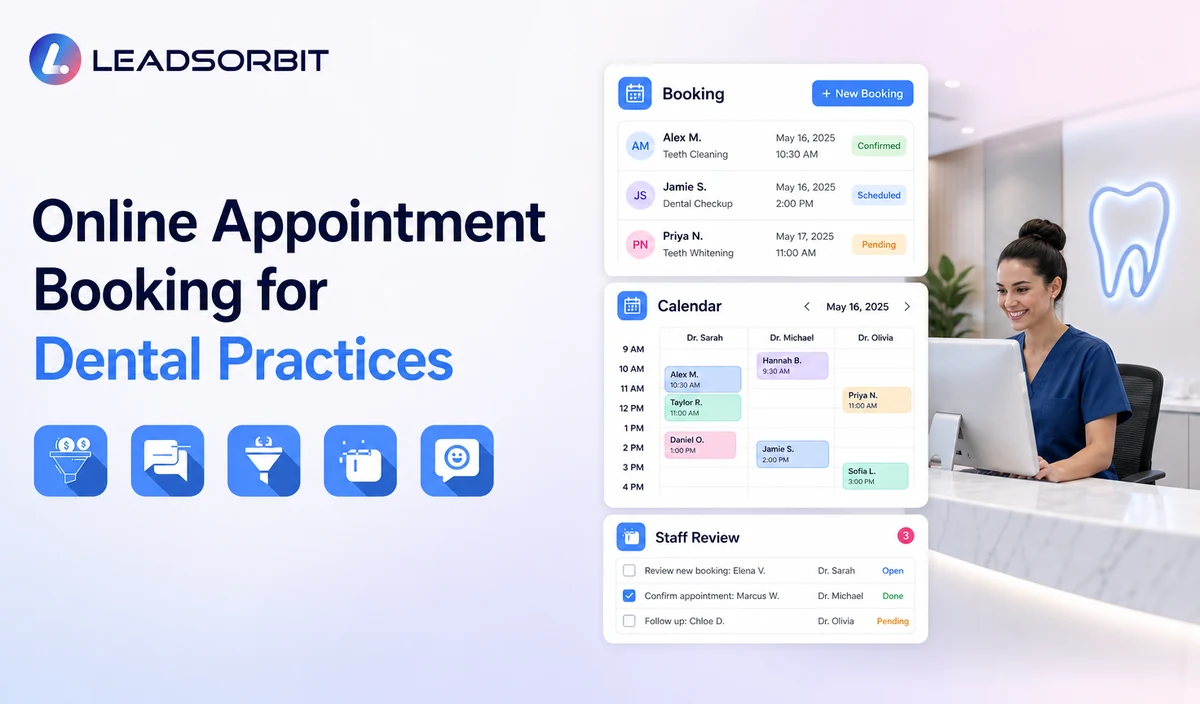
LEADSORBIT’s AI powered CRM can connect appointment requests with conversations, tasks, calendars, and administrative statuses.
- AI Appointment: supports 24/7 booking, connected calendars, confirmations, reminders, rescheduling, and cancellation.
- Workflow AI: supports conditions, follow up actions, tasks, timing, and stop rules.
- Conversation AI: supports conversation visibility, routing, staff takeover, and CRM synchronization.
- CRM records and task ownership: support contact context, booking status, owner, next action, and exception visibility.
Exact calendar providers, appointment categories, field mapping, availability, permissions, retention, and integrations require implementation validation. LEADSORBIT is not positioned as a dental PMS, operatory scheduler, clinical chart, billing, claims, or treatment planning system.
Try LEADSORBIT free for 14 days
FAQs
It is an administrative workflow that lets a new or existing patient request or select an approved appointment, records minimum information, and supports confirmation, reminders, changes, and exceptions.
Final Thoughts
Online booking works best when the practice defines exactly what may be booked, which information is needed, when staff should review the request, and how every change updates the calendar and communication workflow.
Book a Demo to map your appointment categories, calendars, booking statuses, confirmations, reminders, exceptions, and staff ownership inside LEADSORBIT.

Start Your Free 14 Day Trial
Try LEADSORBIT and see how it captures missed calls, follows up instantly, and turns leads into booked appointments for your business.