
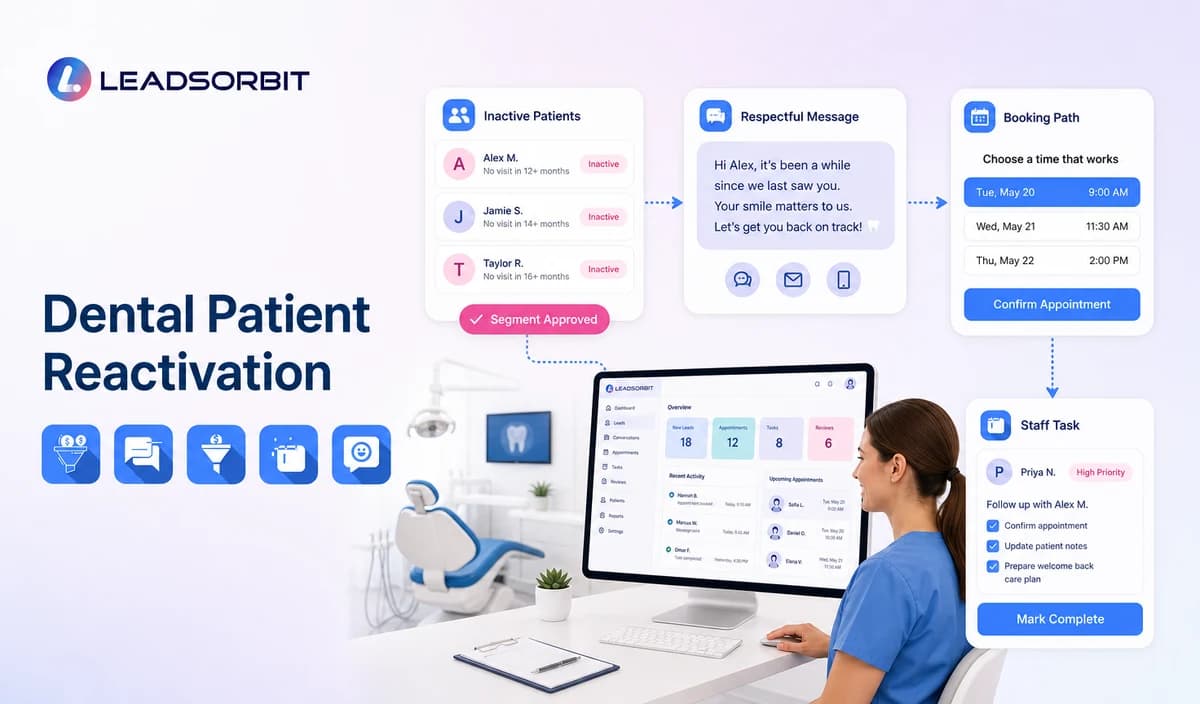

An inactive dental record does not automatically belong in a campaign. The practice must decide which dormant patients or past inquiries are eligible, which records require no contact, and what administrative next step the message can honestly offer.
Dental patient reactivation should remain separate from recall. Recall uses an approved due or overdue status, while reactivation uses reviewed inactivity criteria and does not assume that the person needs treatment. The broad automation framework remains with lead follow up automation for small business.

Who This Guide Is For
- Dental practices with inactive patient or dormant inquiry records.
- Office managers who need eligibility, exclusion, and ownership rules.
- Front desk teams that want booking and callback outcomes visible in the CRM.
- Group practices that need location specific segments, links, and staff owners.
- Healthcare organizations reviewing HIPAA enabled administrative re engagement workflows.
Define Inactivity Before Building the Campaign
The practice should define inactivity in administrative terms and document the source of each field. The campaign should not infer medical need from the absence of an appointment.
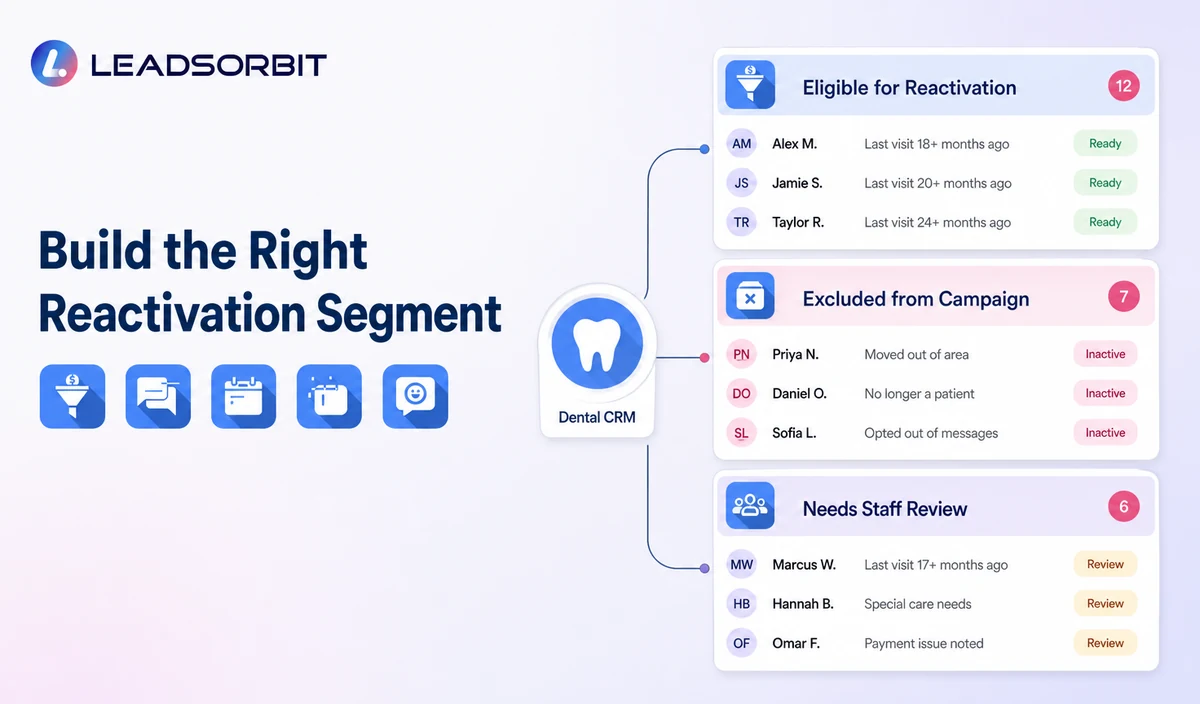
| Possible segment | Administrative definition | Required review |
|---|---|---|
| Past patient without a future appointment | A valid prior patient record with no current booking under the approved rule. | Confirm communication permission, exclusions, contact quality, and appropriate campaign purpose. |
| Dormant new patient inquiry | A past inquiry that never became a valid appointment. | Keep this separate from established patient reactivation when reporting and messaging. |
| Cancelled or no show record | A person whose recovery workflow has ended without rebooking. | Confirm the no show or cancellation process is closed before reactivation. |
| Long inactive patient | A prior patient whose last approved administrative interaction is outside the practice’s review window. | Do not say the person is clinically overdue without a validated recall or professional process. |
| Requested later contact | A person who asked the practice to reconnect during a defined period. | Use the requested timing and permitted channel. |
| Location specific dormant record | A valid inactive record tied to one approved office. | Confirm the correct location, booking link, owner, and permissions. |
Who Should Be Excluded
- Contacts who opted out or revoked consent.
- Invalid, reassigned, or unverified contact information.
- Duplicate records that may receive repeated outreach.
- Patients with an active appointment or open staff conversation.
- Complaint, legal, privacy, sensitive, or unresolved service records.
- Records whose relationship or communication permission is unclear.
- People selected because the practice expects a clinical or financial outcome.
- Records that require professional judgment to determine whether contact is appropriate.
A Practical Dental Reactivation Workflow
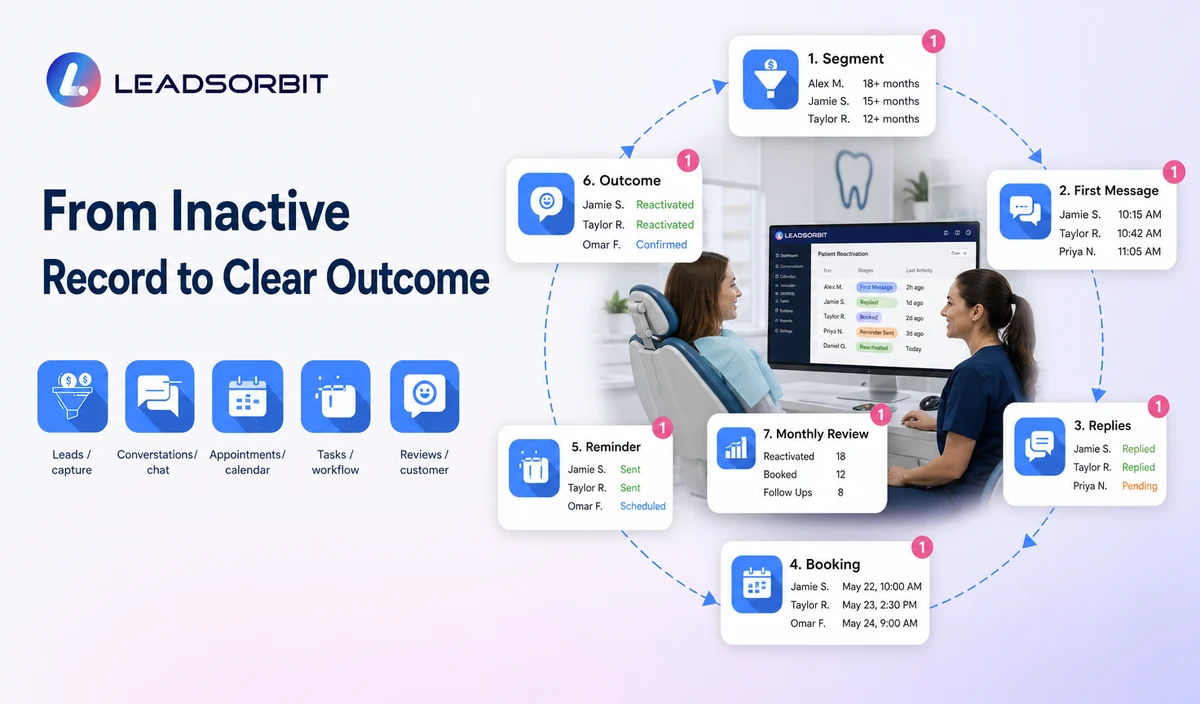
| Stage | Workflow action | Human responsibility | Stop condition |
|---|---|---|---|
| 1. Build the segment | Apply approved inactivity, status, location, and consent criteria. | Review sample records, duplicates, exclusions, and data quality. | Do not activate until the audience is approved. |
| 2. Define the campaign purpose | Choose the administrative message, booking destination, and response owner. | Confirm the wording does not imply clinical need or guaranteed benefit. | Pause when the purpose is unclear. |
| 3. Send the first message | Use the approved SMS or email and identify the practice. | Monitor delivery failures and sensitive replies. | Stop after booking, meaningful reply, opt out, invalid contact, or staff takeover. |
| 4. Route replies | Handle BOOK, CALLBACK, LATER, HELP, negative feedback, or STOP. | Own ambiguous, clinical, complaint, or sensitive replies. | Move non routine responses to staff. |
| 5. Booking or callback | Offer a valid appointment path or create a named task. | Resolve location, provider, appointment category, and calendar exceptions. | Stop after a valid booking or documented resolution. |
| 6. Limited reminder | Send one approved reminder where appropriate. | Review whether the record remains eligible. | Stop at the campaign limit. |
| 7. Outcome and suppression | Record booked, callback, later, no response, invalid, complaint, or opt out status. | Apply the correct future contact rule. | Do not recycle suppressed records into the next campaign. |
| 8. Monthly review | Review replies, bookings, complaints, data quality, and staff workload. | Approve changes before the next audience is activated. | Pause when errors, confusion, or privacy risk appears. |
Dental Reactivation SMS Templates
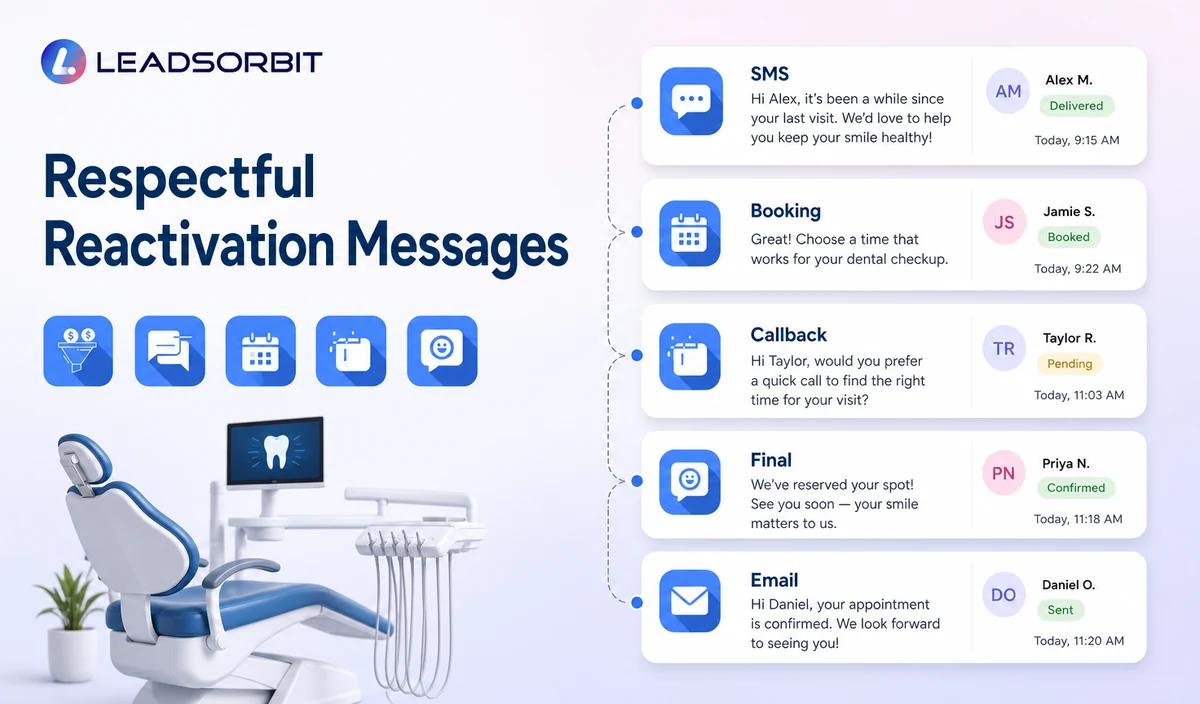
Simple Reconnection
Booking Path
Location Specific Message
Later Follow Up
Final Active Message
Dental Reactivation Email Template
Reactivation Is Not Recall or Treatment Follow Up
| Workflow | Approved starting point | Main purpose |
|---|---|---|
| Patient reactivation | Reviewed inactivity or dormant status. | Offer a general booking or callback path. |
| Dental recall | Validated due or overdue hygiene status. | Offer a recall specific booking or callback path. |
| Unscheduled treatment follow up | Staff approved administrative status after a consultation or treatment discussion. | Offer staff contact or appointment request help without explaining the plan. |
| New lead follow up | A recent inquiry that has not completed the booking journey. | Move the person toward a new patient appointment or staff response. |
Use a Short Cadence With Clear Stop Rules
| Campaign point | Purpose | Control |
|---|---|---|
| Initial message | Explain why the practice is contacting the person and offer a simple next step. | Use the approved segment, sender identity, and opt out method. |
| Limited reminder | Provide one additional opportunity where appropriate. | Do not increase pressure or add clinical claims. |
| Meaningful reply | Route the person to booking, callback, later, help, complaint, or opt out. | Pause generic automation. |
| Booking | Create or confirm the valid appointment path. | Stop reactivation and begin the correct appointment workflow. |
| No response | Record the approved outcome after the campaign window. | Do not automatically restart the same audience every month. |
| Complaint or opt out | Suppress future applicable outreach and assign review. | Do not persuade the person to remain in the campaign. |
Consent, HIPAA, and Healthcare Data
The FCC’s TCPA guidance discusses consent and reasonable revocation methods for certain automated communications. The practice should review its audience, message type, consent record, technology, and jurisdiction with qualified advisers.
LEADSORBIT supports HIPAA compliant administrative workflows for eligible healthcare organizations through HIPAA enabled HighLevel subaccounts. Compliant use depends on maintaining the active HIPAA package, applicable agreements, approved account configuration, user permissions, integrations, retention settings, and the healthcare organization’s own procedures.
Names, contact details, past appointment status, campaign eligibility, replies, and booking activity may be PHI depending on context. Use minimum contact and operational information, keep clinical details outside the campaign, and review each messaging provider, calendar, AI tool, permission, retention setting, and data destination separately.
Monthly Reactivation Review
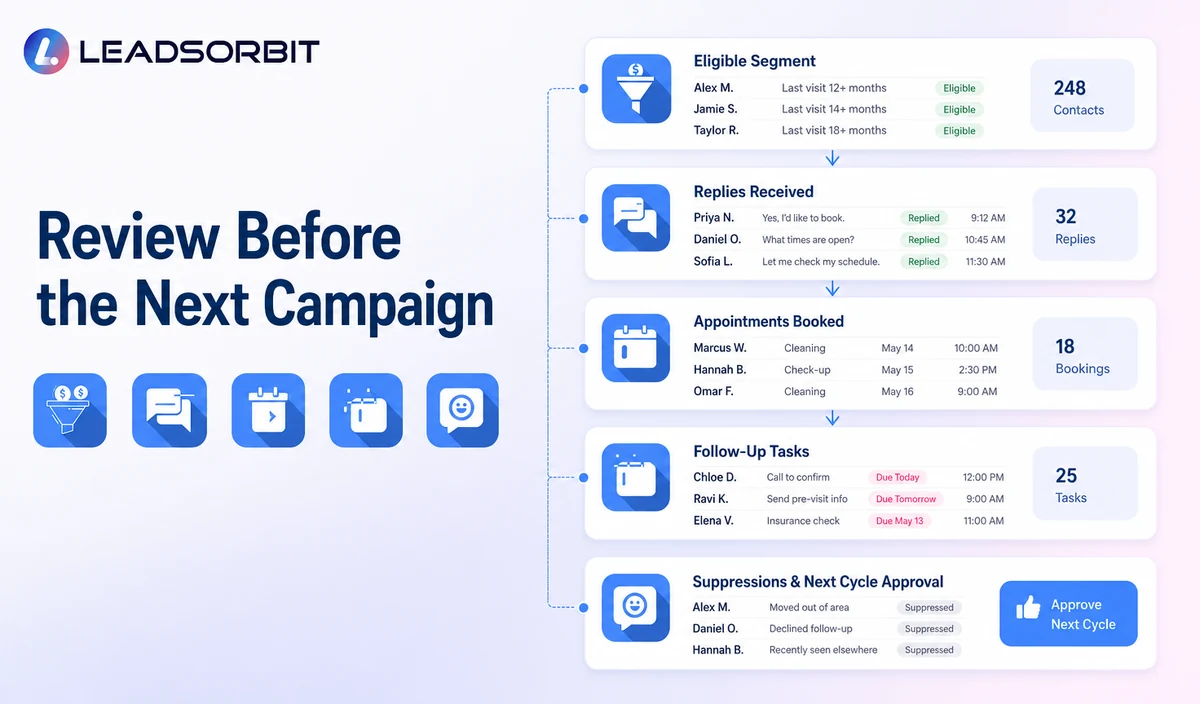
- Verify the next segment before every launch.
- Review opt outs, invalid contacts, duplicates, active appointments, and open conversations.
- Compare SMS and email delivery failures.
- Review replies that required human intervention.
- Confirm booking attribution only when supported.
- Track complaints, confusion, and privacy concerns.
- Check whether suppressed records re entered the audience.
- Review workload created for front desk and scheduling teams.
- Approve any timing, wording, channel, or eligibility change before reuse.
Dental Reactivation Setup Checklist
- Define inactive, dormant, and later contact segments in administrative terms.
- Separate established patients, past inquiries, recall records, and unscheduled treatment records.
- Exclude active appointments, open conversations, opt outs, duplicates, complaints, and invalid contacts.
- Confirm the legitimate outreach basis and permitted channels.
- Approve the initial message, one limited reminder, and reply paths.
- Use the correct practice, location, booking link, and callback owner.
- Define BOOK, CALLBACK, LATER, HELP, negative reply, and STOP handling.
- Keep diagnosis, treatment pressure, and outcome claims outside the campaign.
- Confirm permissions, retention, integrations, and HIPAA enabled account status.
- Review results before launching the next audience.
See the Reactivation Workflow With Your Segments
Book a Demo to map your inactive segments, SMS and email, booking paths, reply handling, staff tasks, suppression rules, and monthly review inside LEADSORBIT.
What to Measure
- Eligible records included and excluded.
- SMS and email delivery failures.
- Replies by booking, callback, later, help, complaint, or opt out.
- Valid appointments connected with the campaign.
- Staff tasks created and resolved.
- Contacts moved to suppression or future review status.
- Duplicate messages, complaints, and privacy concerns.
- Campaign changes approved before the next launch.
How LEADSORBIT Supports Dental Patient Reactivation
LEADSORBIT’s AI powered CRM can connect approved segments, campaign messages, replies, booking paths, tasks, and status visibility.
- Workflow AI: supports triggers, conditions, SMS/email/call actions, timing, tasks, and stop logic.
- Conversation AI: supports supported channel reply visibility, routing, staff takeover, and CRM synchronization.
- AI Appointment: supports booking, calendar connections, confirmations, rescheduling, and cancellation.
- CRM segments, fields, statuses, and tasks: support eligibility review, ownership, outcomes, and suppression when configured.
Exact segment criteria, channels, consent records, location logic, booking configuration, permissions, retention, and integrations must be verified before activation.
Try LEADSORBIT free for 14 days
FAQs
It is a limited administrative campaign for an approved inactive or dormant segment that offers booking or staff help and stops after a defined outcome.
Final Thoughts
Dental patient reactivation works best when the audience is carefully reviewed, the message remains neutral, and the person receives one clear booking or staff help path.
Book a Demo to see how LEADSORBIT can support staff approved dental follow up, callback requests, scheduling, tasks, and administrative status visibility.

Start Your Free 14 Day Trial
Try LEADSORBIT and see how it captures missed calls, follows up instantly, and turns leads into booked appointments for your business.