
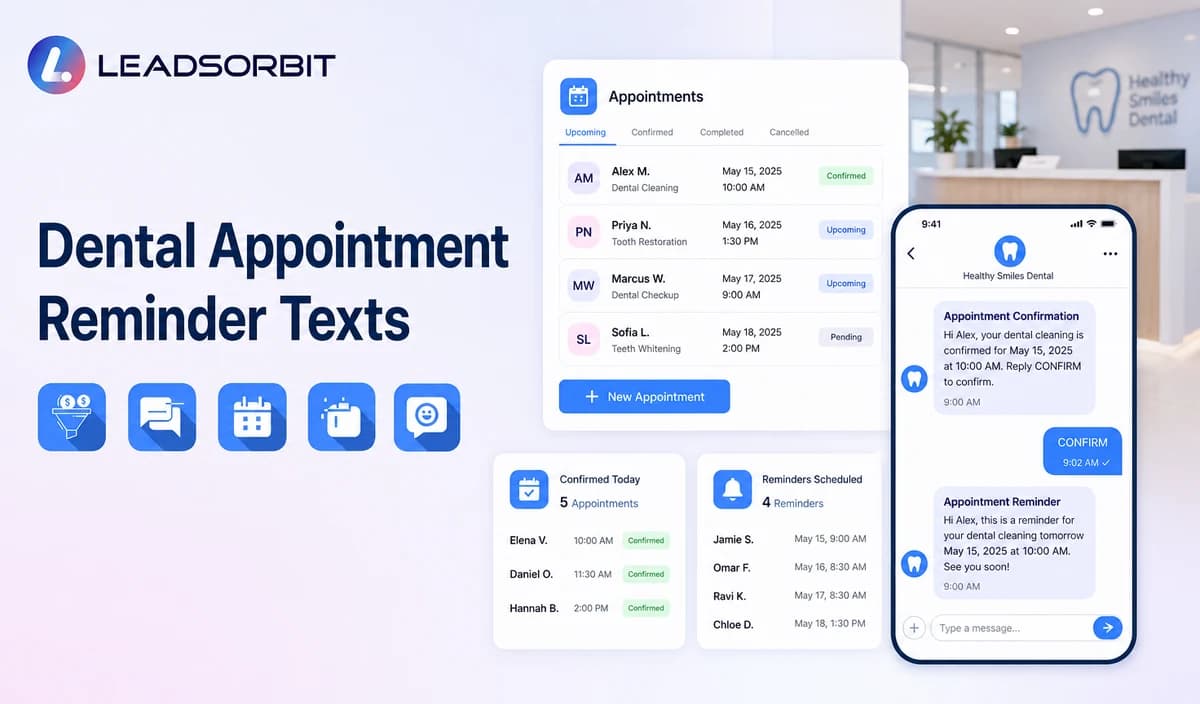

A good dental reminder does more than repeat the appointment time. It helps the patient confirm the visit, understand the location or arrival step, and change the appointment without starting a long phone exchange.
This guide provides dental specific timing and templates. The general framework belongs to appointment reminder texts, while the commercial dental owner remains LEADSORBIT Dental Software.

Who This Guide Is For
- Dental practices that want consistent confirmation and reminder messages.
- Front desk teams managing new patient, hygiene, consultation, recurring, and follow up appointments.
- Group practices coordinating location, provider, and appointment category details.
- Practice owners who want reminder replies and calendar changes visible in the CRM.
- Healthcare organizations configuring HIPAA enabled administrative communication workflows.
Reminder Timing Should Match the Appointment Journey
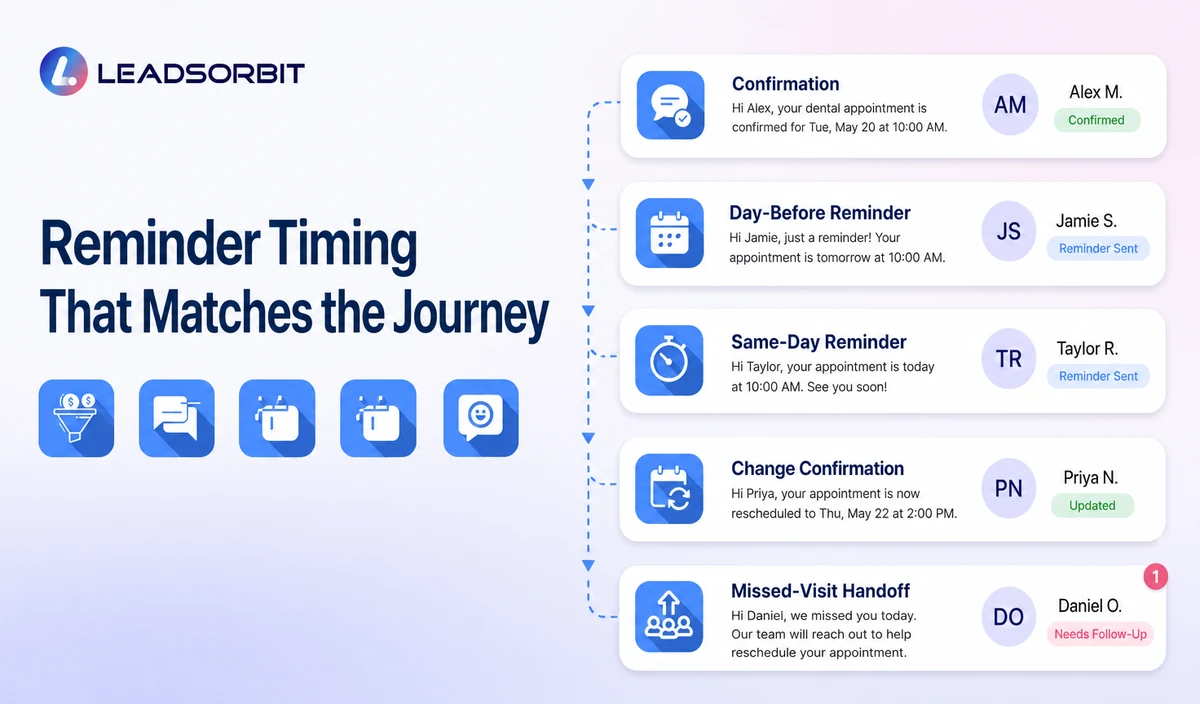
There is no universal reminder schedule for every dental practice. Timing depends on appointment category, booking lead time, office hours, communication consent, and the patient’s ability to act on the message.
| Reminder point | Purpose | Useful content | Stop or change rule |
|---|---|---|---|
| Booking confirmation | Confirm that the appointment exists. | Practice, date, time, location, provider where appropriate, and approved change path. | Replace if the appointment changes. |
| Day before reminder | Give time to confirm or reschedule. | Date, time, location, confirmation option, and approved arrival guidance. | Stop after cancellation or reschedule. |
| Same day reminder | Reduce confusion close to the visit. | Time, location, concise arrival instruction, and staff help option. | Do not send after cancellation or the appointment time. |
| Recurring or hygiene reminder | Confirm the next scheduled visit without overloading the message. | Date, time, location, and change path. | Use the correct appointment record. |
| Change confirmation | Confirm the new status after reschedule or cancellation. | New time or cancellation confirmation and approved next step. | Suppress the old sequence. |
| Missed visit follow up | Acknowledge that the visit did not occur and offer an approved recovery path. | Rescheduling or staff callback option. | Use the separate no show workflow. |
Reminder Wording by Dental Appointment Category
| Appointment category | Useful emphasis | Avoid |
|---|---|---|
| New patient appointment | Location, approved arrival time, confirmation, and change path. | Symptoms, diagnosis, treatment promises, or detailed clinical intake. |
| Hygiene or recurring visit | Date, time, location, and simple reschedule option. | Saying the patient is medically overdue or must receive treatment. |
| Consultation or staff reviewed appointment | Clarify that the final time is confirmed by the practice. | Treatment plan details or implying the original request was automatically booked. |
| Multi location appointment | State the correct office and directions link. | Assuming the patient remembers which location was selected. |
| Rescheduled appointment | State the new valid time and that it replaces the earlier appointment. | Allowing the old reminder sequence to continue. |
Dental Booking Confirmation Template
Use only reply actions the workflow and staff can support. Do not ask the patient to send detailed health, insurance, records, or payment information by text.
Day Before Reminder Templates
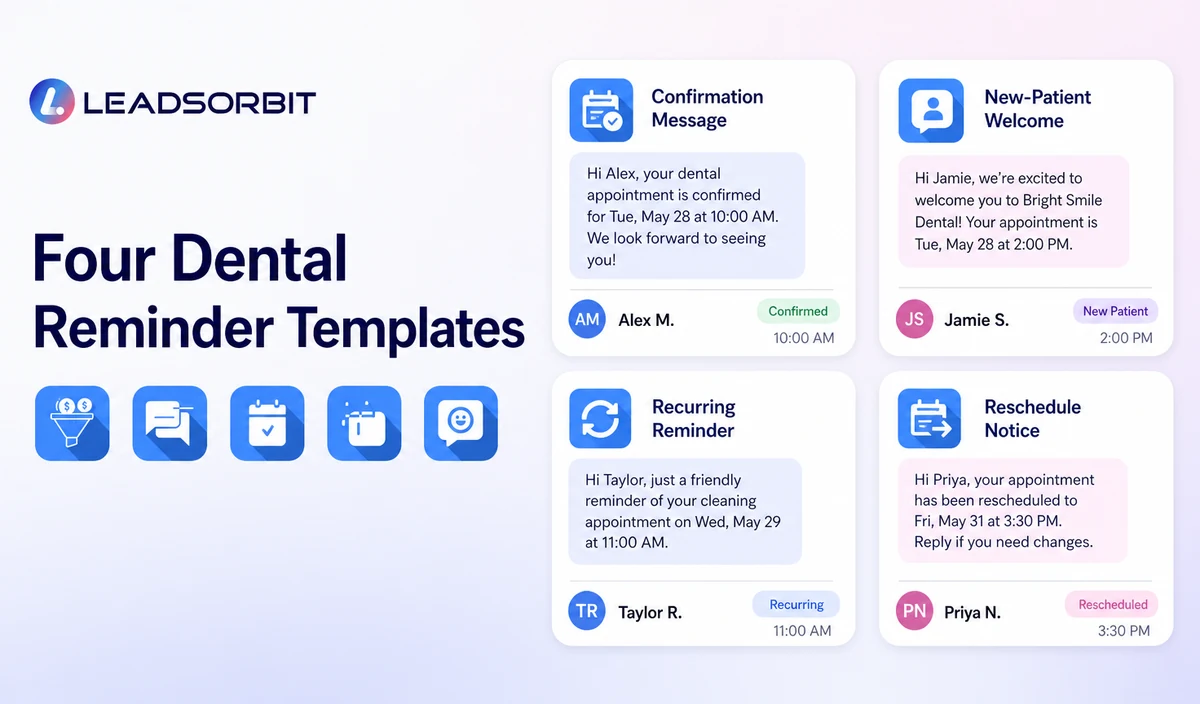
1. New Patient Appointment
2. Hygiene or Recurring Appointment
3. Consultation or Staff Reviewed Appointment
Same Day Reminder Template
Rescheduling and Cancellation Templates
1. Reschedule Requested
2. Reschedule Confirmed
3. Cancellation Confirmed
How Reminder Replies Should Update the Workflow
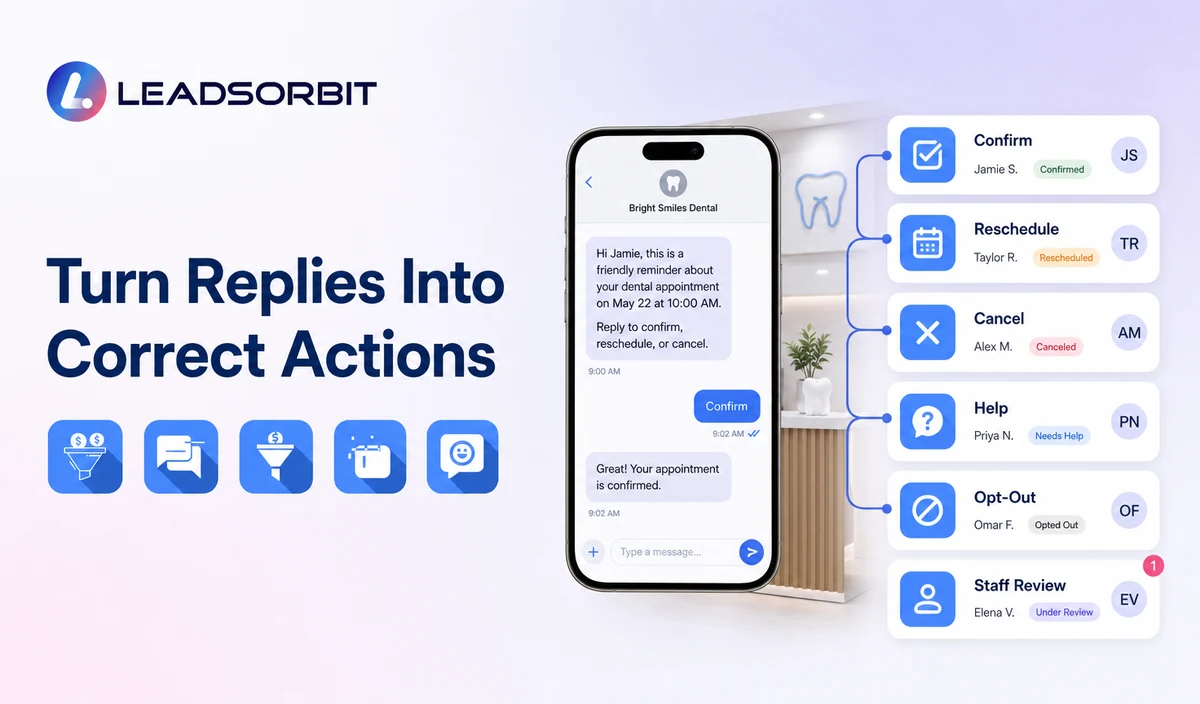
| Patient reply | Required workflow action | Human review |
|---|---|---|
| Confirm | Update the confirmation status and stop duplicate prompts. | Review only when the status conflicts with the calendar. |
| Reschedule | Open the approved change path or create a scheduling task. | Required for unavailable times, provider/location exceptions, or failed links. |
| Cancel | Update the cancellation status and stop obsolete reminders. | Review when the practice has a special cancellation process. |
| HELP or question | Create a visible task with the appointment context. | Required for unclear, sensitive, records, billing, insurance, or clinical requests. |
| Opt out | Stop applicable automated messages and retain the opt out status. | Review only if another permitted communication path is necessary. |
| Unexpected clinical detail | Do not analyze or continue routine automation. | Move to qualified staff and avoid unnecessary repetition. |
Arrival Guidance: Keep It Useful and Minimal
- Use the exact practice name and location.
- State an approved arrival time only when needed.
- Provide a simple directions or parking link.
- Explain the confirmation or change action.
- Mention approved administrative forms without requesting clinical details by SMS.
- Keep the message readable on a phone.
- Use a staff help option for exceptions.
A Practical Dental Reminder Workflow
| Stage | Workflow action | Staff responsibility | Stop condition |
|---|---|---|---|
| 1. Valid booking | Create the correct reminder sequence from the approved appointment record. | Review category, patient preference, location, provider, and exceptions. | Do not start reminders for an unconfirmed request. |
| 2. Confirmation | Send the approved booking confirmation. | Handle failed delivery or unclear replies. | Stop old messages after a change. |
| 3. Day before reminder | Send the appropriate template. | Review reschedule/cancel requests. | Stop after cancellation, reschedule, opt out, or staff takeover. |
| 4. Same day reminder | Send concise timing and location guidance when approved. | Monitor HELP or exception replies. | Do not send after the scheduled time or invalid status. |
| 5. Reply handling | Interpret approved actions such as confirm, reschedule, cancel, or help. | Own ambiguous or sensitive replies. | Move non routine requests to staff. |
| 6. Status update | Update calendar, CRM status, task, and next message. | Correct conflicts and duplicates. | Suppress the old workflow after a new valid status. |
| 7. Missed visit | Move to the separate recovery process where appropriate. | Apply respectful rescheduling and stop rules. | Do not keep sending pre visit reminders. |
Consent, Opt Outs, and PHI Context
The FCC’s TCPA guidance discusses consent and revocation for certain automated communications. Practices should verify their message type, consent source, technology, and jurisdiction with qualified advisers.
LEADSORBIT supports HIPAA compliant administrative workflows for eligible healthcare organizations through HIPAA enabled HighLevel subaccounts. Compliant use depends on maintaining the active HIPAA package, applicable agreements, approved account configuration, user permissions, integrations, retention settings, and the healthcare organization’s own procedures.
Reminder data including names, dates, times, locations, appointment categories, status, and replies may be PHI depending on context. Use minimum contact and operational information, review each integration separately, and avoid unnecessary clinical, records, claims, billing, or treatment details.
Common Dental Reminder Mistakes
- Sending reminders from an outdated or incorrect appointment record.
- Treating an appointment request as a confirmed booking.
- Using the same message for every appointment category when instructions differ.
- Continuing old reminders after rescheduling or cancellation.
- Including too much sensitive, clinical, records, insurance, or billing information.
- Using a reply action the system or staff cannot support.
- Failing to assign HELP, reschedule, cancellation, or failed delivery replies.
- Mixing promotional content into an operational reminder without review.
- Promising a numeric reduction in no shows without evidence.
Reminder Setup Checklist
- Define valid appointment statuses and categories.
- Confirm calendar source, time zone, location, provider, and duration.
- Approve confirmation, day before, same day, recurring, reschedule, and cancellation templates.
- Use only supported reply actions.
- Assign owners for HELP, failed delivery, reschedule, and cancellation replies.
- Stop old sequences after appointment changes.
- Confirm consent, opt out, permissions, retention, and integration requirements.
- Avoid unnecessary clinical or financial detail in messages and calendar fields.
- Test time zones, duplicate bookings, failed messages, and staff takeover.
- Review patient and staff feedback after launch.
See the Reminder Workflow With Your Timing
Book a Demo to map your confirmation, day before and same day reminders, reply actions, rescheduling, cancellation, staff tasks, and stop rules inside LEADSORBIT.
What to Measure
- Confirmations received through the approved action.
- Failed or undelivered reminders.
- Reschedule and cancellation requests routed correctly.
- Old messages suppressed after changes.
- HELP or exception replies without an owner.
- Duplicate reminder sequences.
- Opt outs and complaints.
- Calendar and CRM status consistency.
- Staff feedback about manual reminder work.
How LEADSORBIT Supports Dental Appointment Reminders
LEADSORBIT’s AI powered CRM can connect appointment status, reminders, replies, rescheduling, tasks, and conversation history.
- AI Appointment: supports booking, calendar connection, confirmations, reminders, rescheduling, and cancellation.
- Workflow AI: supports timing, conditions, SMS/email/call actions, tasks, and stop rules.
- Conversation AI: supports reply visibility, routing, human takeover, and CRM synchronization.
- CRM records and tasks: support appointment context, owner, next action, and status visibility.
Exact reminder timing, reply keywords, channels, calendar behavior, permissions, recording/transcription, retention, and integrations require configuration validation. LEADSORBIT is not positioned as a dental PMS, charting, billing, claims, imaging, or treatment planning system.
Try LEADSORBIT free for 14 days
FAQs
Include the practice name, valid date and time, location, approved confirmation or change action, and only the minimum arrival information needed.
Final Thoughts
Dental appointment reminder texts should make the next step obvious: confirm, arrive, reschedule, cancel, or ask for help. The workflow should use accurate appointment data and stop immediately when the status changes.
Book a Demo to see how LEADSORBIT can connect dental bookings, reminders, reply handling, rescheduling, cancellation, and staff ownership.

Start Your Free 14 Day Trial
Try LEADSORBIT and see how it captures missed calls, follows up instantly, and turns leads into booked appointments for your business.