
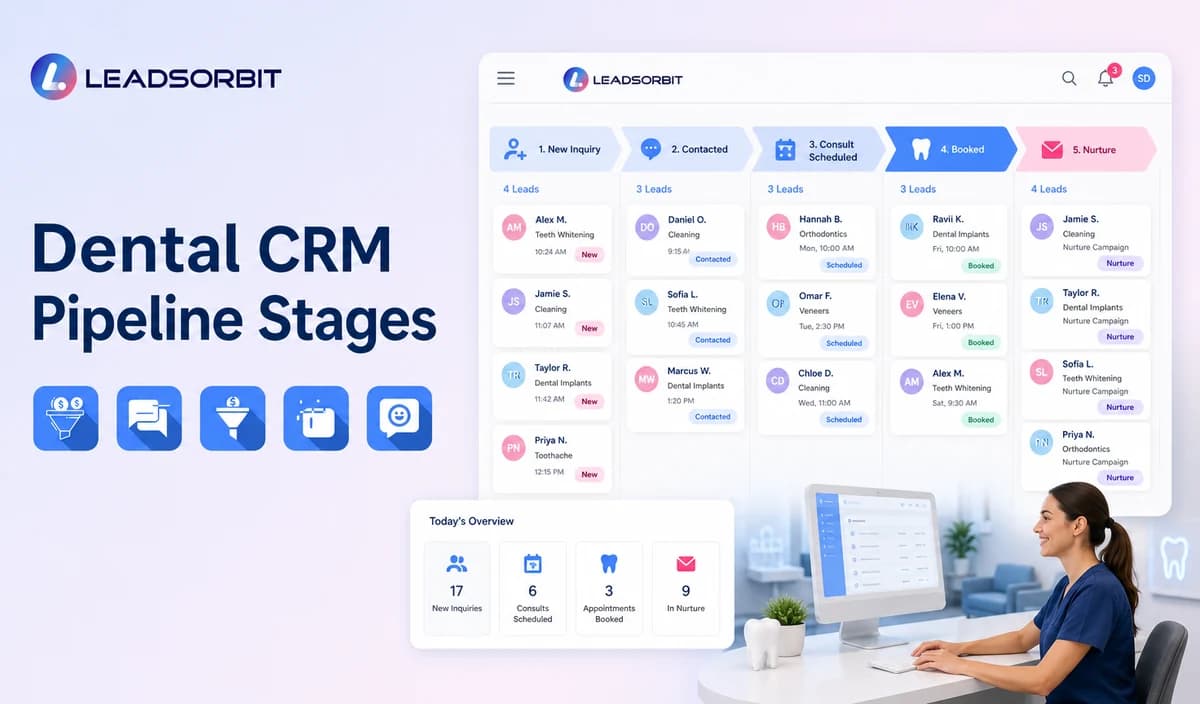

A dental CRM pipeline should answer one practical question: what needs to happen next for each new inquiry? Without clear stages, a contact may sit in a general list even though the practice has already called, sent a booking link, confirmed an appointment, or decided to pause follow up.
Dental lead management software should make the administrative stage, owner, task, and next action visible. It should not become a clinical chart, treatment plan tracker, billing system, or dental practice management replacement. For the broad framework, see CRM pipeline stages for small business lead follow up. The commercial dental owner remains LEADSORBIT Dental Software.

Who This Guide Is For
- Dental practice owners who need visibility across new patient inquiries.
- Front desk teams managing calls, forms, chat, booking, and callbacks.
- Group practices coordinating inquiries by location, provider, or appointment category.
- Office managers defining ownership and service standards.
- Teams moving from spreadsheets, inboxes, or generic contact lists to a dental lead management system.
What a Pipeline Stage Is and Is Not
A stage is a shared operational status. It tells the team where the inquiry stands and which action is due. It should not contain detailed medical information or describe a clinical outcome.
| A useful stage does | A useful stage does not |
|---|---|
| Describe the inquiry’s administrative position. | Diagnose or classify a dental condition. |
| Trigger a clear owner and next task. | Replace a dental chart, EHR, or clinical record. |
| Support communication and booking workflows. | Store detailed symptoms, treatment, imaging, or health history. |
| Create consistent operational reporting. | Guarantee conversion, attendance, or treatment acceptance. |
| Provide an entry and exit condition. | Remain vague or depend on staff memory. |
Recommended Dental CRM Pipeline Stages
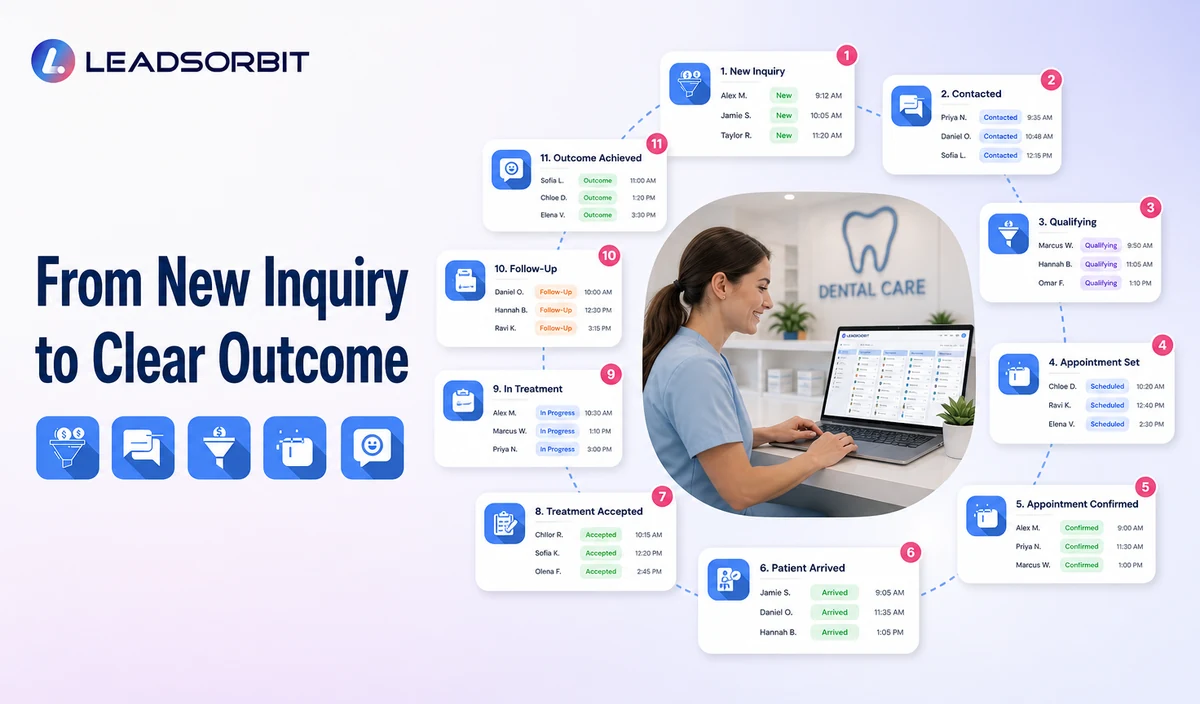
| Stage | Entry rule | Required next action | Exit rule |
|---|---|---|---|
| 1. New Inquiry | A new call, form, chat, referral, or campaign response creates or updates a contact. | Assign an owner and send or schedule the approved first response. | Move when contact is attempted, the person replies, or the record is invalid. |
| 2. Attempted Contact | The practice called, texted, or emailed but has no meaningful reply. | Complete the next approved attempt and confirm delivery status. | Move to Engaged, Nurture, or Closed based on the response and attempt limit. |
| 3. Engaged | The person replied or spoke with the team but has not selected a booking path. | Answer approved office questions and clarify the next administrative step. | Move to Appointment Requested, Booked, Nurture, or Closed. |
| 4. Appointment Requested | The person requested a day, time, location, provider, or callback for scheduling. | Confirm availability or assign staff review. | Move to Booked, Engaged, Nurture, or Closed. |
| 5. Booked | A valid appointment exists on the approved calendar. | Send the approved confirmation and begin the reminder workflow. | Move to Confirmed, Cancelled, or No Show based on the administrative status. |
| 6. Confirmed | The person completed the practice’s confirmation step. | Monitor changes and provide approved arrival guidance. | Move to Completed, Cancelled, or No Show. |
| 7. Completed | The first appointment is marked administratively complete. | Stop acquisition follow up and route only approved next communication. | Move through separate retention, review, recall, or treatment follow up processes where appropriate. |
| 8. No Show / Cancelled | The appointment did not occur or was cancelled. | Use the approved recovery or rescheduling workflow. | Move to Booked, Nurture, Reactivation, or Closed. |
| 9. Nurture | The person is not ready, has not responded, or needs later review. | Apply the approved limited nurture plan and owner review. | Move to Engaged, Appointment Requested, Reactivation, or Closed. |
| 10. Reactivation | An older inactive contact is intentionally re engaged under approved criteria. | Offer a clear booking or callback path and monitor consent. | Move to Engaged, Booked, or Closed. |
| 11. Closed | The inquiry is invalid, opted out, duplicate, not a fit, or no longer active. | Record the reason and stop inappropriate automation. | Reopen only after a new valid interaction or approved review. |
Why Appointment Requested, Booked, and Confirmed Must Be Separate
A person who asks for Thursday afternoon is not booked. Separating request, booking, and confirmation prevents false reporting and makes scheduling exceptions visible.
| Status | Meaning | Example next action |
|---|---|---|
| Appointment Requested | The person expressed scheduling intent or selected preferences. | Staff or system validates availability. |
| Booked | A valid appointment exists on the approved calendar. | Send confirmation and begin reminder logic. |
| Confirmed | The person completed the practice’s confirmation action. | Monitor changes and provide approved arrival guidance. |
| Needs Staff Review | The appointment category, provider, location, insurance/policy question, or calendar exception requires a person. | Create a named task and pause generic automation. |
Stage Ownership and Service Rules
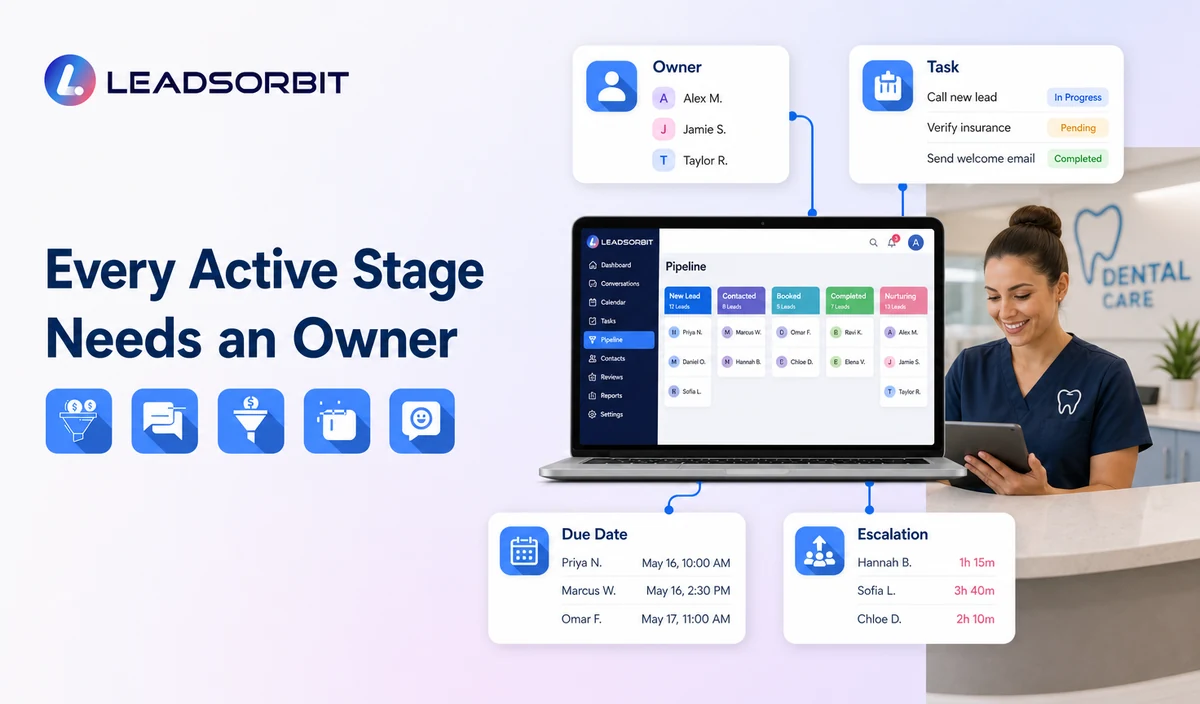
| Stage group | Primary owner | Example service rule | Escalation |
|---|---|---|---|
| New Inquiry / Attempted Contact | Front desk or lead response owner | Review within the practice’s defined business window. | Escalate unassigned or failed delivery records. |
| Engaged / Appointment Requested | Booking owner | Respond to appointment and office questions. | Escalate provider, location, accessibility, or policy exceptions. |
| Booked / Confirmed | Scheduling owner | Monitor confirmations, changes, and reminders. | Escalate repeated failures or sensitive requests. |
| No Show / Cancelled | Rescheduling owner | Apply respectful recovery and stop rules. | Escalate complaints, clinical questions, or repeated exceptions. |
| Nurture / Reactivation | Marketing or operations owner | Review audience, consent, cadence, and outcomes. | Pause campaigns with confusion or compliance concerns. |
| Closed | Office manager or data owner | Maintain accurate closure reasons and suppression rules. | Reopen only with a valid new interaction. |
Automation Rules by Stage
Workflow AI supports configurable triggers, conditions, messages, tasks, timing, and stop logic. Stage movement should still remain understandable and correctable by staff.
- New Inquiry: create owner task and approved acknowledgment.
- Attempted Contact: schedule the next limited follow up and stop after reply or opt out.
- Engaged: notify the owner and pause generic no response messages.
- Appointment Requested: create booking review when automatic booking cannot complete.
- Booked: stop acquisition messages and begin confirmation/reminder workflow.
- Confirmed: suppress duplicate confirmation prompts.
- No Show / Cancelled: start the separate recovery workflow only when appropriate.
- Nurture: use approved timing and communication preferences.
- Closed: stop active automation unless a new valid trigger occurs.
Useful Pipeline Fields Without Becoming a Clinical Record
| Operational field | Purpose | Caution |
|---|---|---|
| Inquiry source | Understand where the contact began. | Do not imply exact attribution unless verified. |
| Assigned owner | Make follow up responsibility visible. | Use backup ownership for absences. |
| Preferred contact channel | Respect communication preference. | Maintain consent and opt out status. |
| New/existing patient status | Select the correct administrative branch. | Do not infer clinical status. |
| Requested location/provider | Route booking appropriately. | Do not promise availability or suitability. |
| Preferred day/time | Support appointment requests. | Avoid unnecessary detail in shared calendars. |
| Next task and due date | Make the next action clear. | Escalate overdue active tasks. |
| Closure reason | Improve data quality and suppression. | Keep reasons simple and nonjudgmental. |
Reporting That Actually Helps
- New inquiries by source and location.
- Records without an assigned owner.
- Attempted Contact records beyond the review window.
- Engaged inquiries without a next task.
- Appointment requests waiting for staff review.
- Booked versus confirmed status.
- No shows and cancellations awaiting the approved next step.
- Nurture records due for review.
- Closed records without a valid reason.
- Duplicate contacts and inconsistent stage use.
HIPAA Enabled Administrative Pipeline Positioning
LEADSORBIT supports HIPAA compliant administrative workflows for eligible healthcare organizations through HIPAA enabled HighLevel subaccounts. Compliant use depends on maintaining the active HIPAA package, applicable agreements, approved account configuration, user permissions, integrations, retention settings, and the healthcare organization’s own procedures.
Names, contact information, appointment status, communication history, tasks, and pipeline fields may be PHI depending on context. Use minimum contact and operational information. Do not use the pipeline to store detailed symptoms, diagnosis, treatment plans, charting, imaging, claims, billing details, or other unnecessary clinical information.
Review the HHS Privacy Rule overview and minimum necessary guidance with qualified advisers. Every connected form, calendar, communication provider, AI tool, storage system, and data destination requires separate review.
Dental Pipeline Setup Checklist
- Choose the minimum stage set and define each stage in one sentence.
- Write an entry rule and exit rule for every stage.
- Assign primary and backup owners.
- Define the next task and service rule for active stages.
- Separate Appointment Requested, Booked, Confirmed, and Needs Staff Review.
- Create distinct No Show, Cancelled, Nurture, Reactivation, and Closed rules.
- Stop acquisition follow up after booking or staff takeover.
- Keep clinical and financial details outside the administrative pipeline.
- Review forms, calendars, integrations, permissions, and retention.
- Audit stage accuracy frequently during launch.
See the Pipeline With Your Practice’s Workflow
Book a Demo to map your dental inquiry stages, owners, booking handoffs, task rules, no response logic, and reporting inside LEADSORBIT.
How LEADSORBIT Supports Dental Lead Management
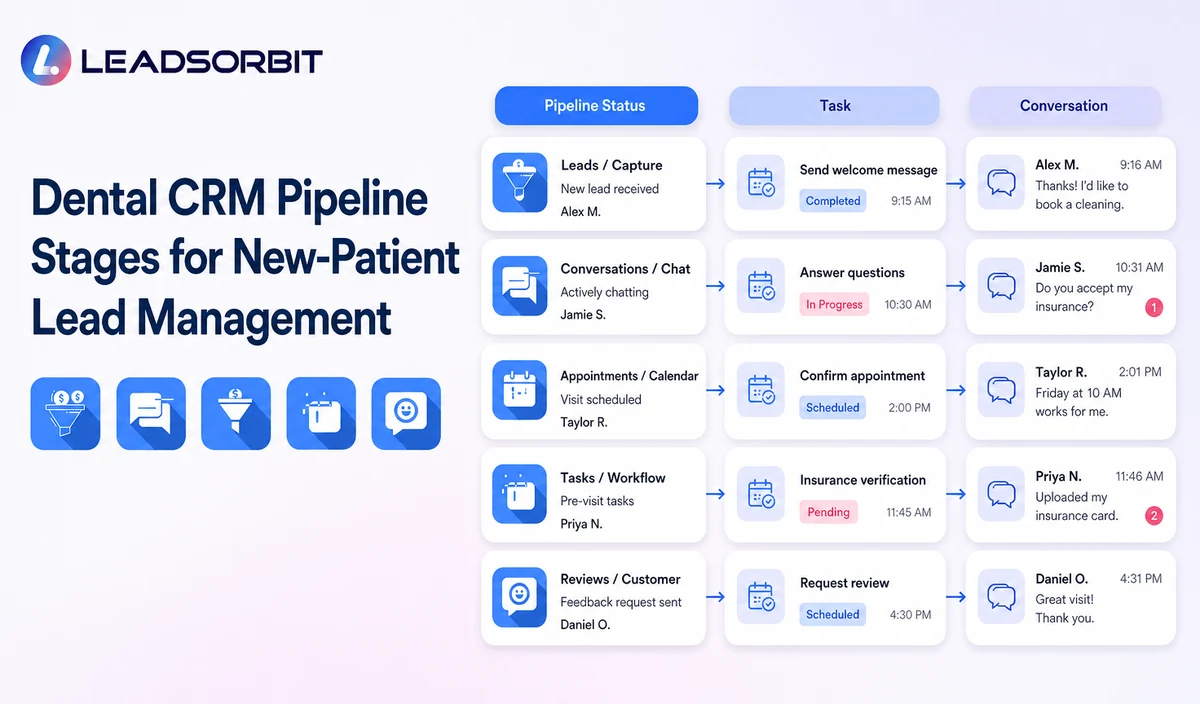
LEADSORBIT’s AI powered CRM can connect contact records, conversations, tasks, appointment activity, workflow conditions, and pipeline status.
- Workflow AI: supports conditions, messages, tasks, timing, and approved stage related actions.
- Conversation AI: supports conversation history, routing, staff takeover, and CRM synchronization.
- AI Appointment: supports booking, confirmations, rescheduling, and cancellation paths that can inform administrative stages.
- CRM pipeline and task visibility: support owners, statuses, next actions, and operational reporting.
Exact automatic stage movement, custom fields, reports, permissions, integrations, and account configuration must be validated. LEADSORBIT is not positioned as a clinical patient management, charting, billing, claims, imaging, or treatment planning platform.
Try LEADSORBIT free for 14 days
FAQs
A practical stage set includes New Inquiry, Attempted Contact, Engaged, Appointment Requested, Booked, Confirmed, Completed, No Show or Cancelled, Nurture, Reactivation, and Closed.
Final Thoughts
The right dental CRM pipeline makes ownership visible. Every stage should tell the team what happened, what needs to happen next, and when automation should stop.
Book a Demo to see how LEADSORBIT can organize dental inquiries, booking status, tasks, conversations, and pipeline reporting.

Start Your Free 14 Day Trial
Try LEADSORBIT and see how it captures missed calls, follows up instantly, and turns leads into booked appointments for your business.